

Price Update Tool in Ascend HQ simplifies your price update process.
It allows you to search your product catalog for any price changes, update the price in your system, and print new labels for the product you have on-hand. Any supplier available in the Cloud Catalog is available in the Price Update Tool as well.
Search for price updates from a particular supplier, store location, and time range and let the Price Update Tool do the work.
Before you get started, please note:
Using the Price Update Tool will only update product MSRP, not cost information.
Keep an eye on Case Qty products, as you could overwrite the MSRP/Price you have set for the individual item back to the CASE MSRP.
Accessing the Price Update Tool
- Log into Ascend HQ.
- Click Products > Price Update.

Setting Search Parameters
- Select or search the Supplier you want to see from the Select Supplier dropdown.
Note: Map Suppliers Here will take you to Supplier Catalog Mapping where you can map additional suppliers available in the Cloud Catalog. For more information about Supplier Catalog Mapping, check out our article: Ascend HQ - Cloud Product Catalog Set up.

- Select the store that has Inventory.

- Set the date range of price updates to display in the Date Range dropdown.
Note: If you have not been using the tool consistently, it might be a good idea to set a larger date range of 60 or 90 days.

- Click Check for Updates to display results. The price updates of all products from the selected Supplier will be displayed if they have not previously been updated.

Sorting Search Results
All columns are sortable, re-orderable, re-sizable, and have filters underneath the header.

Sort Results by Column
Click the up/down arrows next to the Column header to sort results.

Sort Results by Price Trend
Sorting by Price Trend allows you to sort results by Price:
- Up (increase)

- Down (decrease)

- Neutral (your MSRP matches that of the specific Supplier you are searching).


Search by Description
Use the Search Description field to search for specific products within the results.

Search VPN (Vendor Part Number)
Search for a specific Vendor Part Number within the results.

Customizing Column Chooser
The Results Form has a column selector to indicate which columns are displayed in the Price Updates Found.
Click the blue settings icon next to Price Updates Found to display the Column Chooser.

Columns of your choice can be added by clicking Column Chooser on the wheel button. All columns can be sorted, and columns have range slider.

You can also change the order of columns by clicking on the column header to drag and drop it into a new spot.
Update Prices
The Price displayed in New Price is what the price will be updated to. You can modify or change the price to something other than what is listed in the New Price. Just click into New Price and enter the price you'd like to set.

Select Product(s) to Update
- Select the product(s) you'd like to update by checking the box next to each line or checking the box next to Description to select all products.

Note: Be sure to pay attention to the number of pages available with updates. You can also modify the number of results displayed as well.

- Sort the Old Case Qty column to pull products with a Case Qty set in your Ascend database to the top of the results (may need to add Old Case Qty and New Case Qty columns from the Column Chooser).
- Uncheck the Case Qty items so the Old Price is not updated to the New Price (likely the price of the entire case instead of the individual).
- Verify the New Price.
- Click Update Prices. Any of the products that are checked will have their price updated in the Ascend Client.

Print Labels
- From the Ascend desktop click the Price Updates tile or Tools > Price Updates.
- The Price Updates tile will have a number that indicates the quantity of products that need to be labeled with the updated price.

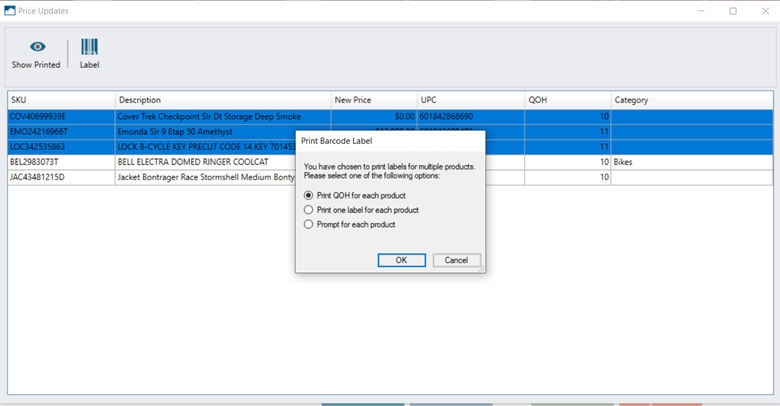
- Select the product(s) you'd like to print labels for. You can select using Ctrl to select them individually or Shift to highlight a group of products.

Note: If there is a product(s) that you DO NOT want to print labels for, click Skip before you begin printing. The product(s) will be removed from the list but the price update in your Ascend database remains.

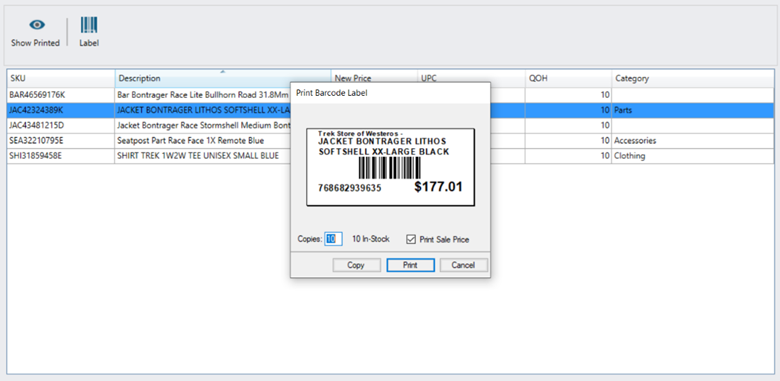
- Click Label.

- Select an option from the Print Barcode Labels prompt (if printing labels for more than one product).
- Print QOH for each product: Prints the current QOH for the product.
- Print one label for each product: Prints ONE label for each product listed.
- Prompt for each product: The Print Barcode Label prompt will be displayed before each label is printed.
Labels to Print
Only products updated through the Price Update Tool will appear in the Price Updates queue to have labels reprinted. If you manually update the price in the Ascend Client, it will not appear in the Price Updates queue
Additional Resources
KB22-050