

Note: Try the Cloud Product Catalog for Trek orders. Article: Products - Using the Cloud Product Catalog
Set up Trek Integration
To integrate with Trek, you will need to enter your Trek B2B login information into the Trek Vendor record within Ascend.
- From the Ascend desktop > View > Vendors.
- Search for Trek.
- Double-click the Trek Bicycle Corporation vendor to edit it (or create the vendor, if needed).
- From the Integration dropdown select Trek Bicycle Corporation.
- Enter:
- Trek B2B Account Number
- Trek B2B Password
- Trek B2B User name (use your shops' super user account information).
- Click Save.

Auto-Sync Purchase Orders
Checking this box is required for full Trek integration (see image below). If you leave this box unchecked, you may experience issues using the Receiving Wizard, HQ Ordering Central, and other Ordering functionality.
For more information about Auto-Sync check out our article: Ordering - Auto-Sync Options.

Quick Steps to Create a Trek Vendor Order
- Click the Place Order tile on the Ascend desktop.
- Select Trek Bicycle Corporation from the Select Vendor prompt.
- Add items to the order through the Reorder/Items to Order (special order items) or Individually.
-
Verify:
- Special Orders
- Quantities being ordered
- Cost
- MSRP
- Case Qty
- Click Availability.
- Resolve any issues with products.
- Click Submit.
- Confirm Trek Order Review prompt.
- Click Submit.
- Click Save.
- Assign products to Category if prompted by Category Mapper.
- Wait for order to arrive to receive.
Adding Items to Order
Products can be added to the order the same way you do for any other vendor (see Ordering - Create a Vendor Order (purchase order) (including special orders, see Sales - Special Orders).
However, Trek has a couple special considerations in orders:
- Bikes and P&A (parts and accessories) must be submitted separately. Be sure to select the appropriate order type (located to the left of the search bar) before checking availability.

- Backorders "products you've already ordered from Trek that were not in stock when you ordered" CANNOT be managed in Ascend. Log into Trek's B2B site to manage all backorders.
- Project One (P1) bikes should NOT be ordered through Ascend (however, you should certainly still record these orders in your system!); see the Sales - Selling and Ordering Trek Project One (P1) Bikes article for full details on this process.
- Finally, for new products, use the Cloud Product Catalog (see Products - Using the Cloud Product Catalog).
Check Product Availability
One advantage of integration is that you can check product availability in Ascend when you're creating your vendor orders.
After you've added all the products you plan to order to the Vendor Order screen, simply click the Availability icon to check availability on Trek B2B.

Line Item Color Coding:
After hitting the Availability icon, you will see color coding for all the line items on your orders after retrieving product availability. These colors are intended to help you decipher if you are able to submit the order and if there are any items that cannot be backordered.
- Black: The product can be backordered, regardless of current quantity available
- Green: The product cannot be backordered and the order quantity is equal to or less than what is available.
- Yellow: The product cannot be backordered and the order quantity is higher than available product. To fix, adjust the quantity on order to equal to or less than
- Purple: The product can't be found in B2B

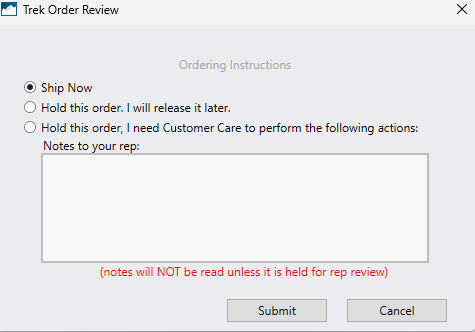
All Items are Available at Primary Warehouse
When all of your items are available at your primary warehouse you can choose to ship the order or hold the order.
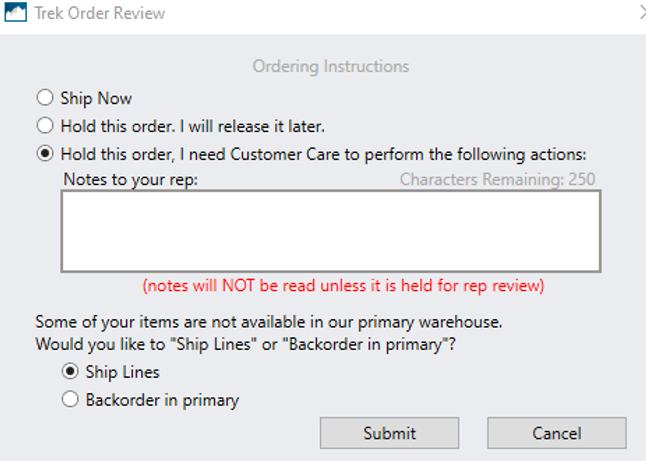
Item(s) Not Available at Primary Warehouse
When there is an item or multiple items that cannot be ordered from your primary warehouse you can choose to have the item(s) shipped from another warehouse. This will be for all lines that are not available at your primary warehouse, and cannot be specified on a line by line basis.
Submitting an order
Select the Submit icon.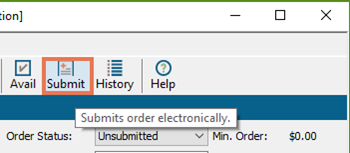
Order Submitted
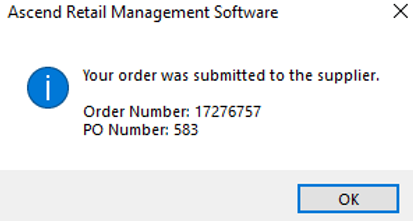
After the order has been Submitted, a pop-up will appear that displays the Order Number (Vendor Order Number), and the PO Number.
Please note that this does NOT mean that the order was successfully submitted/accepted by Trek.
Submitted (Pending)
After you press okay on the previous message box, you will be brought back to the Purchase Order Screen. The status will be marked as "Submitted (Pending). This signifies that the order has not been accepted by Trek yet.
Submitted (Online)
Once the order has been accepted, a notification will be sent to Ascend and the status will change to "Submitted (Online). If you have auto-sync turned on, it will also sync your order to match what is currently on Trek B2B.

View Estimated Delivery Times
Once the order is submitted, the Estimated Arrival Date column displays the Shipped, Estimated, or Promise date provided from B2B.

KB22-042