

Starting with Ascend version 24.15, integrated Gift Card processing is now available for US and Canada retailers through Givex direct integration. For Chase customers, integration with Givex will remain functional with no changes for US retailers only. Gift Cards are physical cards and their balances are directly linked and tracked via the specific card number.
Note: Unless you've configured otherwise with Givex, gift cards can have a maximum balance of $999.99 and are only valid at the location at which they were purchased. Gift cards are single use only. Gift cards cannot be reused or reloaded.
Givex Direct Integration
If you are an existing Ascend Pay and Givex customer who has maintained an active Chase account for Gift Card processing, you will need to complete the Givex Integration onboarding, which is done by the Ascend Business Development Team. Please reach out to the Ascend Business Development Team (sales@ascendrms.com) to complete your Givex Direct Integration onboarding.
Redeeming a Gift Card
For information on Redeeming a Gift Card, please check out our article, Payment Type - Redeeming a Gift Card.
Selling a Gift Card
- Create a new Sale and attach the customer.
- Take in their payment for the Gift Card. Are they paying cash or credit? Capture that payment first.
- The transaction balance now shows in parentheses, indicating a negative value (where the shop owes them).
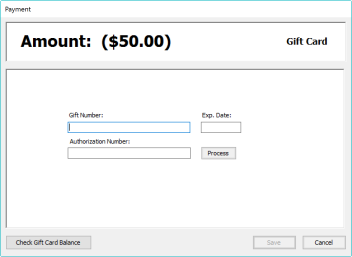
- Select Gift Card from payment types.

- The Amount will automatically in fill in with the negative amount in the balance field.

- Enter the Gift Card number in the Gift Number field. This can be done by manually keying in the number or scanning the barcode on the back of the card.
- Click Process.
- Close the transaction as usual.
Checking Gift Card Balance
You can check a customer's Gift Card balance multiple locations within Ascend.
- From the Ascend desktop > Integration > Givex > Check Gift Card Balance.

- From the transaction screen > Customer > Check Gift Card Balance.

- From the transaction screen > Select the Gift Card payment type > Check Gift Card Balance.
- Then manually key Gift Card number or scan the Gift Card barcode and select OK to see the card balance.

Chase/Givex Integration
Redeeming a Gift Card
For information on Redeeming a Gift Card, please check out our article, Payment Type - Redeeming a Gift Card.
Selling a Gift Card
- Create a new Sale and attach the customer.
- Take in their payment for the Gift Card. Are they paying cash or credit? Capture that payment first.
- The transaction balance now shows in parentheses, indicating a negative value (where the shop owes them).
- Select Gift Card from payments toolbar.
- The Amount will automatically in fill in with the negative amount in the balance field.
- Swipe the card to apply that amount to it.
- Close the transaction as usual.
Checking Gift Card Balance
- From the transaction screen > Select Customer from the top tool bar > Check Gift Card Balance.
- From the transaction screen > Select the Gift Card payment type > Check Gift Card Balance.
- Then swipe the card or enter the card number and select OK to see the card balance.
If you're not integrated with Chase or Givex
If you are using a non-integrated gift card program, you can create a custom payment type in Ascend to note those gift card payments or use Ascend's Gift Certificate feature instead of Gift Cards. See Payment Type - Sell a Gift Certificate for details.
Additional Resources
KB22-224